Upload spreadsheets or CSV files for us to geocode row by row.
Video Tutorial
Note: we also have a video tutorial over on YouTube if you prefer.Step by step guide:
- Sign up for an OpenCage Geocoding API key, or if you already have one log in.
-
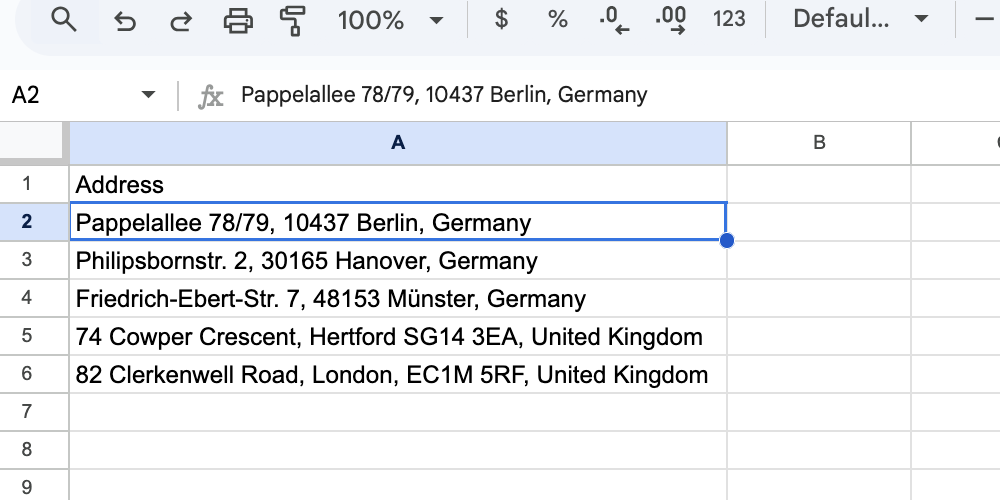
Format your file correctly
Ideally put the entire address (including the country name) in a column named
address.Please see our detailed guide to formatting your file.
-
Make sure you understand the file size limits
- Free trial accounts can geocode spreadsheets of up to 100 rows.
- Subscription customers can geocode spreadsheets up to 10,000 rows.
- One-time customers can geocode spreadsheets up to the number of requests they have remaining or 10,000 rows.
- We will stop geocoding once you hit your limit.
If you need more please purchase the appropriate plan. -
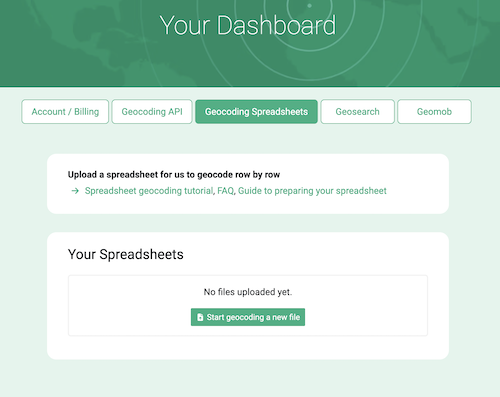
Upload your file In your account dashboard
We support the following file types: .csv, .ods, .tsv, .txt, .xls, .xlsx
-
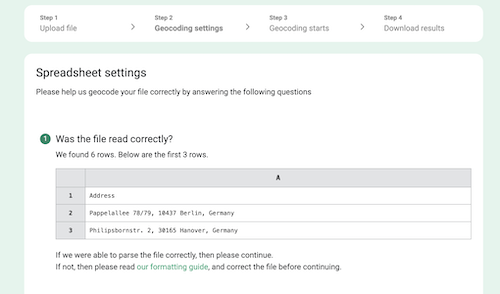
Answering the settings questions
These settings tell us how your file is structured and what results you need.
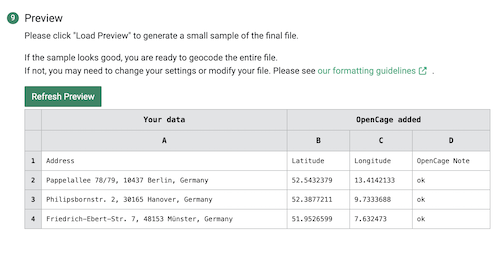
At the end we will ask you to preview your file to make sure we can geocode it.
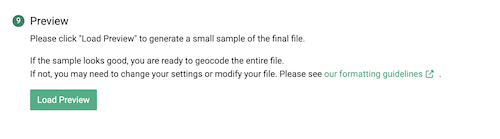
Click on "Load Preview"
Check that the output has the fields you need.
-
Click "Start Geocoding"
Once you are sure you have the fields you need start the geocoding.

-
We geocode your file
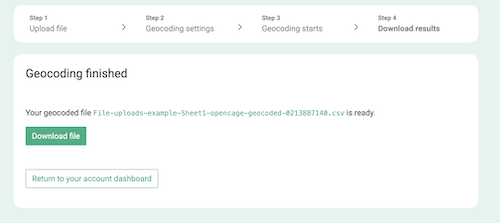
We will email you when your file is ready.
Files for paying customers are given priority and processed more quickly than those from free trial accounts.
-
Download your file.Uploaded spreadsheets or CSV files are automatically deleted after:
- 3 days for free trial users
- 30 days for paying customers
You can also delete your files manually whenever you like.
2,500 geocoding API requests/day - No credit card required